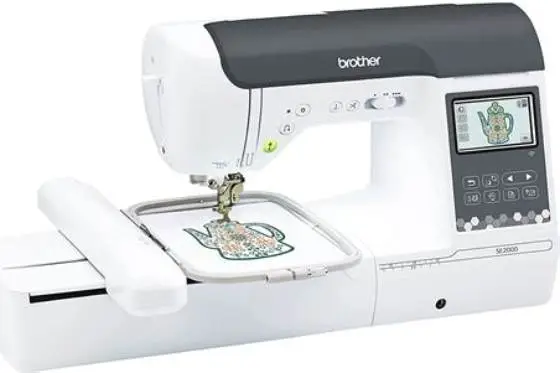
How to use a Brother embroidery machine and hoop sizes for the PE800
Use a Brother embroidery machine by setting it up, threading both upper and bobbin threads correctly, hooping your fabric securely, loading your design via USB or direct connection, and starting the stitching with the foot control. The PE800 works best with 5x7 inch hoops for most projects.
On this page (8 sections)
- The short version
- Basic operation steps for Brother embroidery machines
- How to set up and load designs on a Brother embroidery machine
- Threading and hooping your fabric correctly
- Brother PE800 hoop size options and their uses
- How to use Brother embroidery machine
- Troubleshooting common Brother embroidery machine problems
- Still wondering?
Part of our guide on best embroidery machine
Key figures
- PE800 Hoop Size
- 5x7 inches
- Needle Size
- 80/12 EU/US
- Thread Weight
- 50 wt
- Design Load
- USB flash drive
- Stitch Speed
- 400-650 SPM
The short version
- Set up your machine on a stable surface with power and USB ready.
- Thread upper and bobbin threads according to the manual, with presser foot up.
- Hoop fabric firmly in the 5x7 inch hoop for PE800 for best results.
- Load designs via USB flash drive or from built-in library.
- Start stitching with the foot control and monitor the progress.
Basic operation steps for Brother embroidery machines
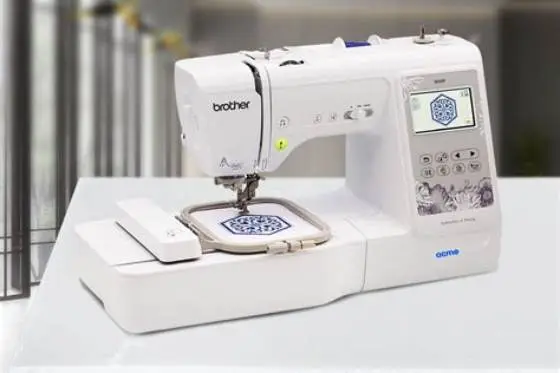
Start by placing your Brother embroidery machine on a steady, clean surface near a power outlet. Plug in the power cable and attach the foot controller. Turn on the machine using the power switch. The screen will light up, showing the main menu.
Load your fabric in an embroidery hoop, making sure the fabric is taut but not stretched or distorted. Attach the hoop firmly to the machine’s arm. Next, thread the upper thread by following the machine’s threading path with the presser foot raised. This ensures the tension discs open properly.
Wind and insert a bobbin with matching thread. Insert the bobbin case and pull the bobbin thread under the needle plate. Lower the presser foot and use the needle up/down button to position the needle. Select or load your design, then start stitching by pressing the foot controller or start button.
- Place machine on stable surface and plug in power and foot controller.
- Load fabric into hoop and attach to machine arm securely.
- Thread upper thread with presser foot up.
- Insert wound bobbin and position bobbin thread correctly.
- Load embroidery design from built-in library or USB.
- Start stitching using foot controller or start button.
How to set up and load designs on a Brother embroidery machine
Begin setup by turning the machine on and checking the screen displays the home menu. Designs can be loaded from the machine’s built-in library or from a USB flash drive formatted with PES files, the native Brother format. Keep USB drives under 32GB for compatibility. It helps to understand needles for embroidery machines before going further.
Insert the USB flash drive into the machine’s USB port. Use the touchscreen to navigate to 'Designs' then 'USB'. Select your design and tap 'OK' to load it. The machine previews the design, showing stitch count and dimensions. Confirm or resize if needed.
To create or edit designs, use Brother’s PE-Design software on your computer before saving to USB. Always check the design fits your hoop size – for the PE800, that is mostly 5x7 inches. This avoids stitching outside the hoop area.
| Method | File Format | Max File Size | Ease of Use |
|---|---|---|---|
| Built-in Library | PES | N/A | Very easy |
| USB Flash Drive | PES | Under 32GB recommended | Easy |
| Direct Computer Link | PES or DST | Depends on software | Moderate |
Threading and hooping your fabric correctly
Threading your Brother embroidery machine starts with raising the presser foot to release the tension discs. Follow the machine’s marked threading path carefully, passing the thread through the tension discs, thread guides, and finally through the needle’s eye. Use a needle size 80/12 EU/US matched to your fabric weight for best stitching. It helps to understand balancing budget and stitching efficiency before going further.
Winding and inserting the bobbin is equally important. Use the built-in bobbin winder to load thread evenly, then place the bobbin into its case with the thread tail facing the correct direction, usually clockwise. Pull the bobbin thread under the bobbin case tension spring.
Hooping fabric correctly prevents puckering and misalignment. Use an embroidery hoop size that fits your design and machine. For the PE800, the 5x7 inch hoop is standard. Tighten the screw firmly while stretching the fabric taut but not overstretched. Use stabilizers under the fabric for thin or stretchy materials.
- Upper thread - presser foot up, follow threading path carefully.
- Bobbin - wind evenly, insert with correct orientation.
- Hoop fabric tautly but avoid stretching.
- Use suitable stabilizer to support fabric during stitching.
Master the Brother PE800 embroidery machine with clear steps for setup, threading, hooping, design loading, and choosing the right hoop size.
Brother PE800 hoop size options and their uses
The Brother PE800 uses interchangeable hoops to suit several design sizes. The most common hoop is the 5x7 inch (130x180 mm) size, ideal for medium-sized embroidery designs and versatile for most projects. It balances space and ease of use.
Smaller hoops, like 3.2x4 inches, are available for compact designs, while larger hoops up to 5x12 inches exist for bigger projects but may require more careful fabric positioning. Always match your design size within the hoop dimensions to prevent stitching errors.
Hoop selection depends on your project fabric and design. Larger hoops may cause fabric to loosen if not secured well. Smaller hoops reduce fabric movement but limit design complexity. Check your PE800 manual for compatible hoop models and always use the hoop locking mechanism to avoid slippage.
| Hoop Size (inches) | Dimensions (mm) | Best for | Notes |
|---|---|---|---|
| 5x7 | 130x180 | Most medium designs, general use | Standard supplied size |
| 3.2x4 | 80x100 | Small monograms or patches | Limited design area |
| 5x12 | 130x300 | Large designs, multiple monograms | Requires careful setup |
How to use Brother embroidery machine
Start by turning on the machine and selecting your design from memory or USB. Position your hoop securely on the machine’s arm with fabric and stabilizer properly hooped. Lower the presser foot to hold the fabric steady during stitching.
Press the start button or use the foot pedal to begin embroidery. Monitor the stitching progress on the LCD screen, which shows the current stitch count, color changes, and elapsed time. When color changes appear, the machine will stop automatically for you to change the thread.
After the design finishes stitching, raise the presser foot and remove the hoop carefully. Trim any loose threads and remove stabilizer according to its type. Clean lint from the machine’s bobbin area after every few projects to keep performance smooth.
- Power on machine and select design.
- Attach hoop to machine securely.
- Lower presser foot.
- Press start or use foot pedal to begin stitching.
- Change thread colors as prompted.
- Remove finished embroidery and clean.
Troubleshooting common Brother embroidery machine problems
Skipped stitches often result from a dull or incorrect needle. Replace needles every 6-8 hours of stitching or when switching fabric types. Use sharp embroidery needles sized 80/12 for most fabrics. Also, check threading again to ensure it follows the correct path.
Thread nests under the fabric usually mean bobbin thread tension is off or the bobbin is inserted incorrectly. Reinsert the bobbin and verify the thread pulling direction. Clean lint from the bobbin case and feed area regularly.
Hoop misalignment causes designs to shift or appear crooked. Ensure your fabric is taut and hoop screw is tight. If the design is stitching outside the hoop, reload or resize the design to fit the hoop area. When issues persist, consult a qualified technician for machine servicing.
- Skipped stitches - replace needle, re-thread upper and bobbin threads.
- Thread nests - check bobbin orientation and clean lint.
- Hoop misalignment - tighten hoop and re-hoop fabric.
- Persistent issues - seek professional service.
Still wondering?
Can I use any embroidery hoop with the Brother PE800?
No, the PE800 requires hoops compatible with its arm and clamp system. Using non-compatible hoops risks fabric slipping and poor stitch quality. Stick to Brother-approved hoop sizes like 5x7 inches for best results.
How often should I change the embroidery needle?
Change needles every 6-8 hours of stitching or when you switch fabric types. A fresh needle prevents skipped stitches and fabric damage. Always use needles sized 80/12 for typical embroidery fabrics.
What file formats does the Brother PE800 accept?
The PE800 primarily accepts PES files, the native Brother embroidery format. It also reads DST files if loaded via USB. Always confirm your design file matches the machine’s capabilities to avoid loading errors.
How do I know if my fabric needs stabilizer?
Thin, stretchy, or loosely woven fabrics usually require stabilizer to prevent puckering. Test by hooping fabric taut; if it stretches or deforms, add a medium-weight cut-away stabilizer for stable stitching.
Can I resize embroidery designs on the PE800?
The PE800 allows resizing within limits, generally up to 20% enlargement or reduction. Resizing too much can distort stitch density and cause poor results. For major size changes, edit the design in PE-Design software before loading.